Online Payment Settings
Online Payment Settings
For detailed instructions on enabling online credit card payments, please check here.
We will guide you through the following four sections:
- Adding a Payment Gateway
- Adding a Payment Gateway Strategis
- Online Payment Settings
- List of Supported Payment Gateways
Booking Widget Buttons
RoomBoss allows you to control how your customers make bookings and send inquiries from your website booking widget. This is done by using the Send Inquiry and Book & Pay widget buttons.

Send Inquiry - Allow customer to send an inquiry about lessons they are interested in. Book & Pay - Allow customer to book online and make payment.
To decide which buttons appear to your customers:
- Navigate to Product Setup → Online Payment Settings.
- Click Online Payment Settings at the top of the screen.
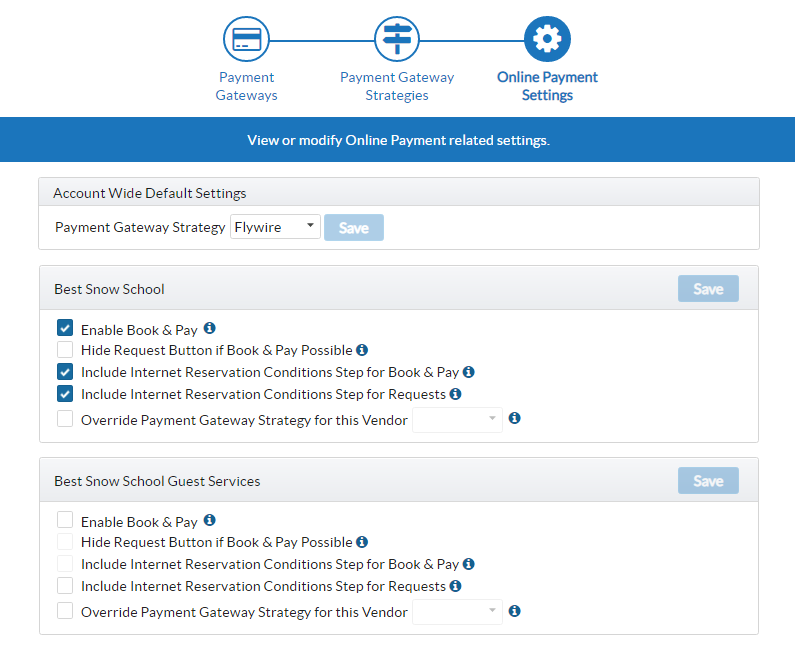
Enable Book & Pay
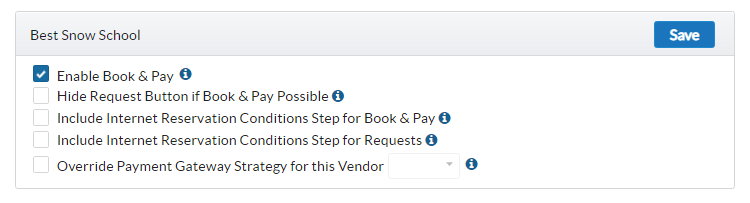
- If the Enable Book & Pay option is enabled (checked), both the Book & Pay and Send Enquiry buttons will be visible on your online booking widgets. Book & Pay bookings allow customers to secure their reservations immediately by making a payment via your payment gateway.
- If Enable Book & Pay option is disabled (unchecked), customers will only have access to the Send Inquiry button, from which you receive booking requests.
- Visibility of the button also depends on the availability of the instructor. If Book & Pay is enabled but no inventory is remaining, Send Inquiry will be shown.
Other Condition Based Widget Button Settings
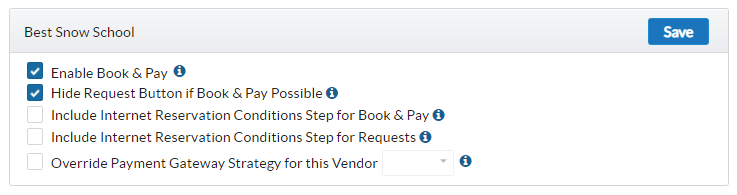
- If Hide Request Button if Book & Pay Possible is enabled, either Book & Pay or Send Inquiry will be shown on the page (not both):
- If direct booking is possible (there is instructor availability), only Book & Pay will be shown.
- However, if direct booking is not possible (no instructor availability), only Send Inquiry will be shown.
Enable Book & Pay must be enabled before Hide Request Button if Book & Pay Possible can be enabled.
Auto Cancel
If Book & Pay is displayed on the booking widget you may also set an Auto Cancel, so bookings are automatically cancelled if a customer does not make payment.
- Navigate to Account → Edit Account Details
- Under Auto Cancel Booking, click on the Enable Auto Cancel of Bookings checkbox.