Instructor Setup
Instructor Registration and Contract Management
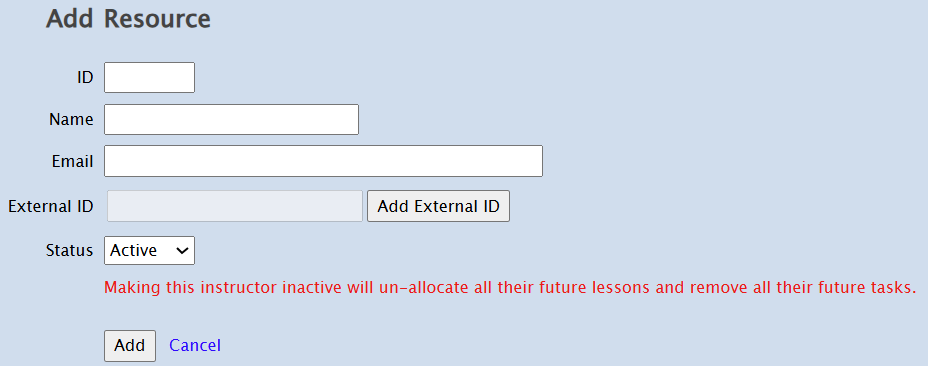
Add Instructor
Menu → Product Settings → Product Details → “Resources” tab
This page is used to set up/manage basic instructor information.
- ID: ID used in an external HR system, etc. (can be left blank)
- Name: Instructor's name
- Email: To to send messages from RoomBoss to instructors
- Other ID: Instructor's RFID (can be left blank)
- Status: Active / Inactive (Inactive if the instructor retired)
Add Instructor Contract
Menu → SSMS Setup → Instructor Contract Management
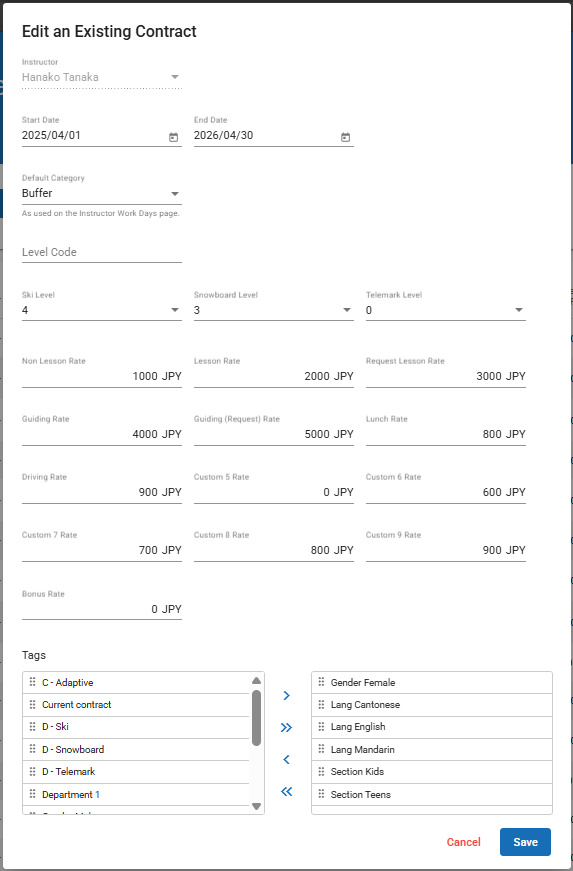
On this page, you can set up the following settings
- Term of Contract
- Default Category: This will be used when setting up inventories
- Level-Code
- Ski/Snowboard/Telemark Level
- Hourly Rate
- Non Lesson Rate
- Lesson Rate
- Request Lesson Rate
- Custom 1 Rate 1-5
- Bonus Rate
- Tag: It is used as a filter to quickly find the right instructor for a guest with specific needs.
How to Setup Instructor Contract Management
- Select the school vendor and click Next
- Active instructors added from the "Resource" will be shown
- Contract Setup
- To create a new contract, click the Create button at the bottom right of the screen
- To edit an existing contract, click the edit icon on the left of the relevant instructor.
- To create a new contract based on an existing contract, click the copy icon to the left of the instructor you want to copy from.
- Enter the instructor's details
- Click Save
Example
How to Use the Instructor Filters
Menu → SSMS Setup → Instructor Contract Management
On the Instructor Contract Management page, you can use filters to narrow down the list of instructors based on specific criteria. This makes it easier to find the instructors you need, especially when managing a large number of instructors, and helps you review and manage their contract information more efficiently.

How to Bulk Edit Tags and salary (rates)
Menu → SSMS Setup → Instructor Contract Management
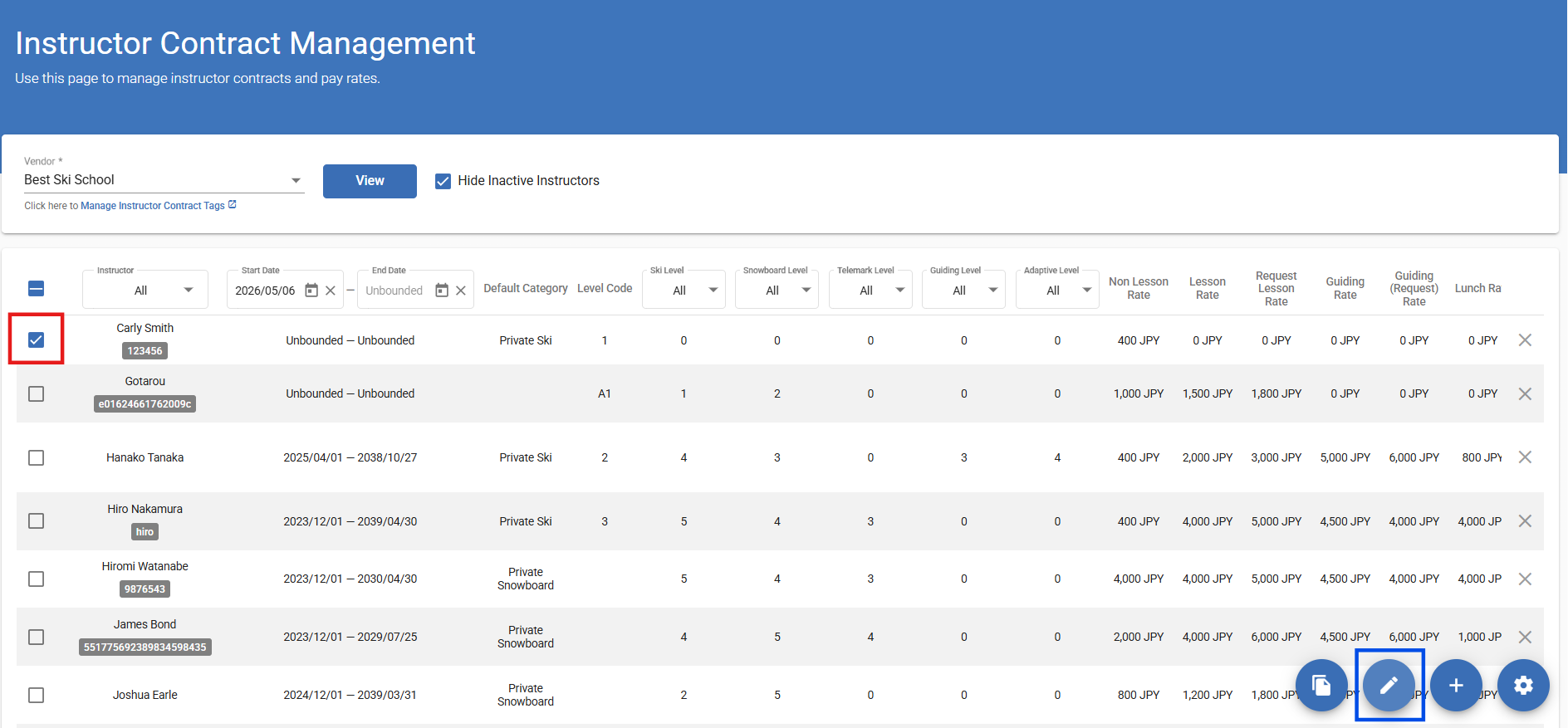
On the Instructor Contract Management page, you can edit tags and pay rates for multiple instructors at once.
This eliminates the need to update each instructor individually, making it easier and more efficient to manage pay rate changes and tag updates.
As shown in the image below, tick the checkbox at the top left (red box) to select all displayed instructors. Alternatively, you can select specific instructors by ticking the checkboxes next to their names.
Once you have selected the instructors you wish to update, click the icon at the bottom right (blue box) to open the bulk editing window.
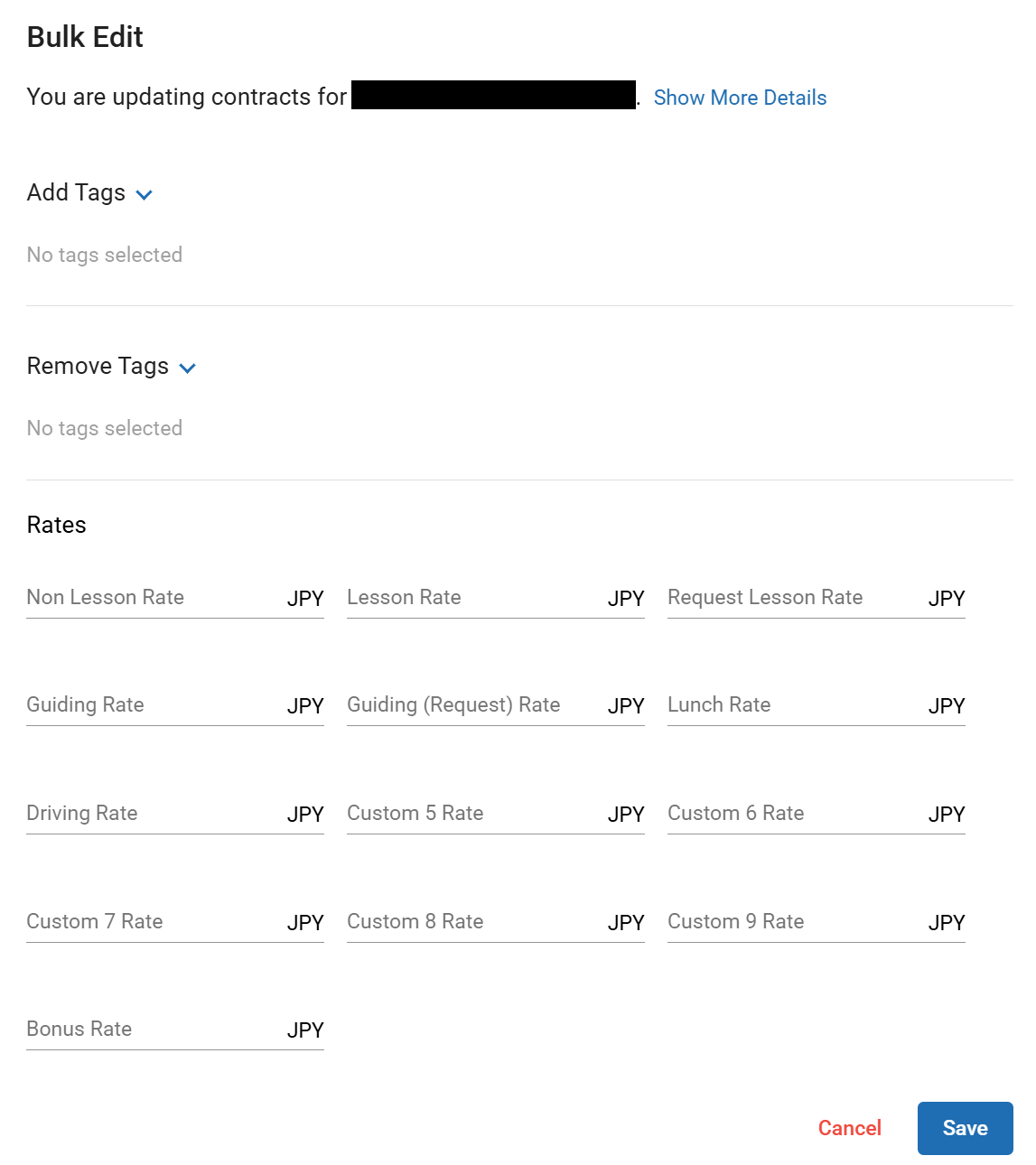
In the bulk editing window, you can make the following changes:
- Add Tags: Add tags to multiple selected instructors at once.
- Remove Tags: Remove tags from multiple selected instructors at once.
- Salary (Rates): Set or update pay rates, including lesson rates, guiding rates, and other pay rates.
To add or remove tags, select the relevant tags under Add Tags or Remove Tags, then use the arrow buttons to move them to the box on the right.
Once you have made your changes, make sure to click the Save button at the bottom of the window.
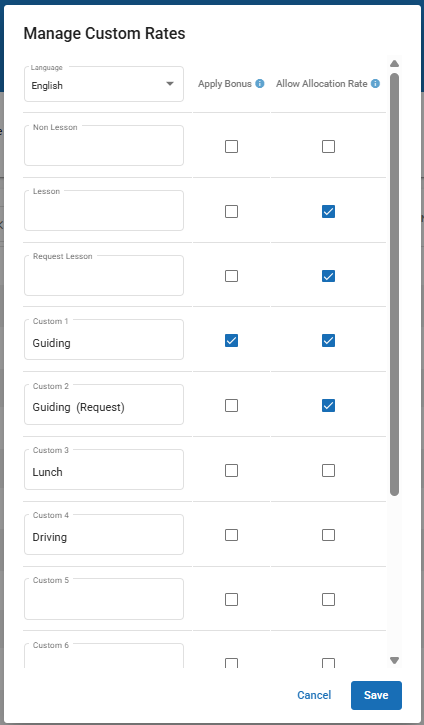
How to Set Custom Rates
Menu → SSMS Setup → Instructor Contract Management → “Custom Rate” tab
You can use this page to customize rate names, manage instructor pay rate and other rate conditions.
How to Setup Instructor Contract Tags
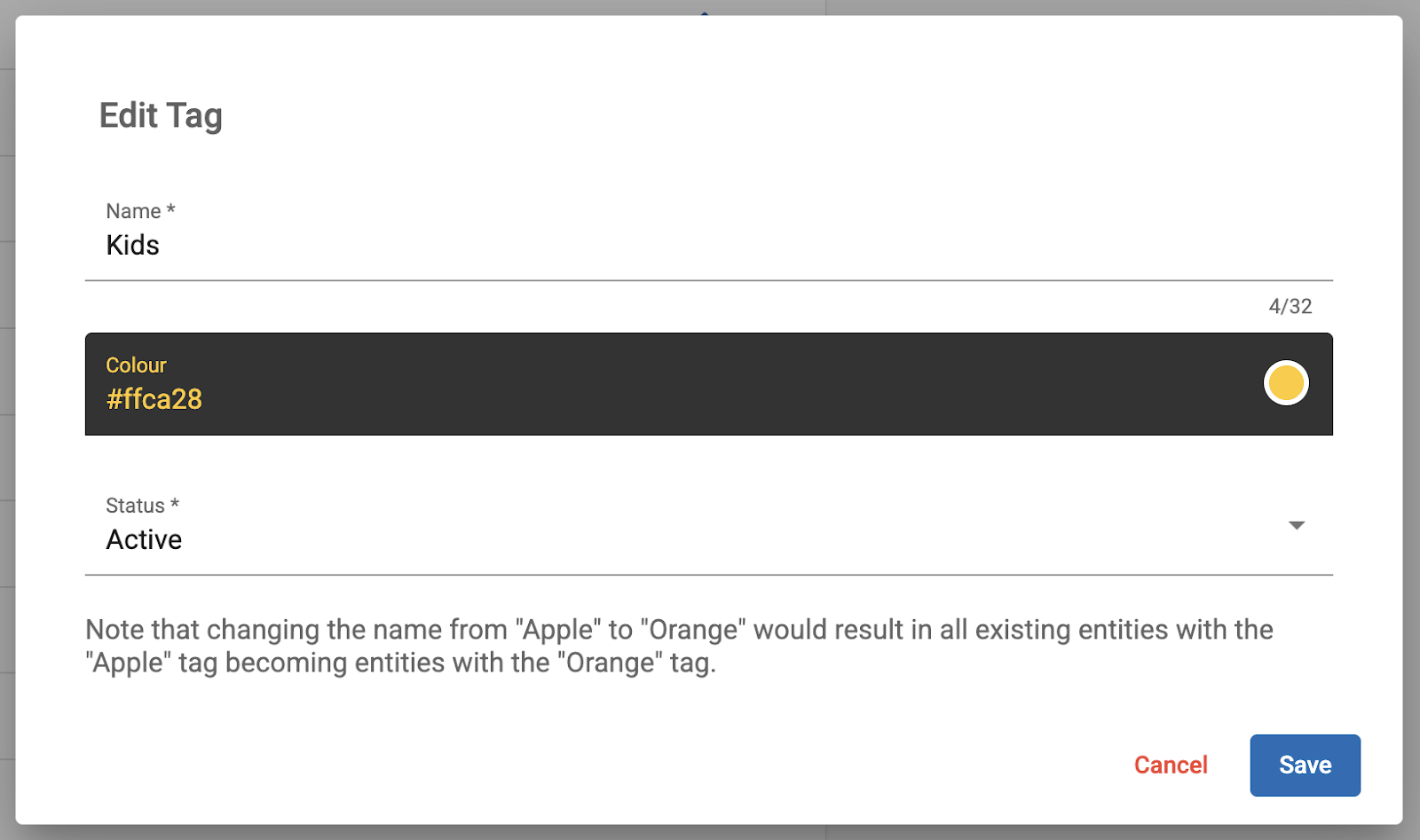
Menu → SSMS Setup → Instructor Contract Tags
- Click on the + icon in the lower right corner of the screen
- Enter the tag name
- Select a color
- Click Save
Edit an existing button:
- Click on the edit icon on the right
- Edit the tag
- Change the status Active/Inactive
- Click Save
Instructor Login Setup
SSMS has a portal for instructors.
Instructors can log in to view their latest schedule, lessons, and salary.
When an instructor is registered in the system, login information is automatically generated. When you share the login information with each instructor, the instructor is able to log in.
Menu → SSMS Setup → Instructor Logins
- Name: Instructor's name
- ID: ID for instructors to log in (this cannot be changed)
- Password: Change password change/ Send reset link
- Create: Date login information was generated
- Last Login: Instructor's last login date
- Number of Logins: Number of times the instructor has logged in
A password reset link will be sent to the email you registered in the "Resources".
Instructors can login from the link below.
https://appt.roomboss.com/login.jsf
Limit How Many Days in Advance Instructors Can View the Schedule
It is possible to control how many days in advance the instructors can view the information from their own Instruct Logins.
Only the users with the Super Admin role can manage this setting.
Menu → Accounts → Edit Account Details
- At the bottom of the page, click “Edit Account” and enter the password
- Edit the field in Instructor section
- Click Save at the bottom of page
